Tool workshop · Make.com
Make.com for UX teams: turn research notes into a reviewable brief
Build a small automation that organizes approved notes, preserves evidence references, and stops for a designer’s review before sharing.
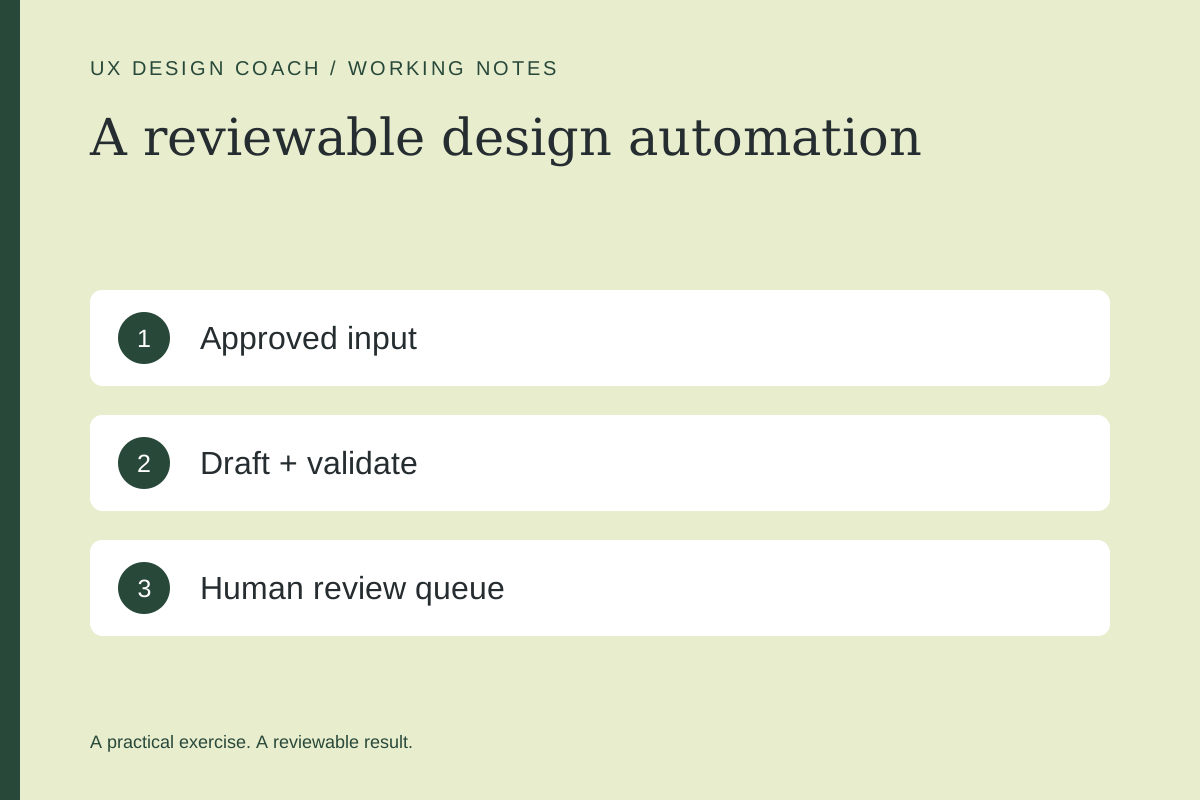
In this guide
The useful starting point
Use Make for predictable routing and AI for a bounded drafting step. Keep evidence references and a review status in every output.
Choose a repeatable task with a clear finish
A useful first design automation is preparing a review brief from approved research notes. It saves copying and formatting while preserving the designer’s responsibility for interpretation. Keep recruitment, participant messages, and publishing outside this first workflow.
This guide is about Make.com, the automation platform. For interactive prototypes, use the separate Figma Make guide. Make’s current AI Agents app lives in the Scenario Builder; its official guide covers triggers, instructions, tools, knowledge, structured output, and testing.
1. Design the input record
Use a test spreadsheet or other approved source with these fields: record_id, project, source_reference, approved_excerpt, research_question, and review_status. Begin with fictional records. A row should contain the minimum material needed for the task, not a full customer history.
| Field | Example |
|---|---|
| record_id | R-014 |
| source_reference | Session P03, task 2, 08:12 |
| approved_excerpt | Participant returned to the appointment comparison twice. |
| research_question | Can people distinguish the two appointment types? |
2. Build the smallest scenario
Create a scenario with your source’s supported trigger. Filter for approved records. Add the Make AI Agents (New) run-agent module, choose the available provider, and give it only the drafting job. Save its output to a review destination. Keep the schedule off while using Run once with test records.
Suggested route: approved record → duplicate check → AI draft → output validation → review queue. If a source reference is missing, route the record to an exception queue before calling the model. Your team should be able to understand why a record stopped.
3. Give the agent an evidence contract
Prepare a UX review brief from the supplied records. Return: observation, source_reference, possible_interpretation, alternative_explanation, and next_question. Preserve record IDs. Do not invent participants, quotes, frequencies, or conclusions. If the source is missing, return needs_review=true and explain what is missing.
Use a structured response when available. Then validate required fields outside the AI step. A well-formatted answer can still contain unsupported reasoning; a human compares the draft against the originals.
4. Test failures before scheduling
- Run the same record twice; verify the destination does not receive duplicates.
- Remove a source reference; verify the exception path.
- Supply conflicting observations; verify both survive the summary.
- Simulate an unavailable destination; verify the retry or failure record is visible.
- Check usage after several runs and set a manageable operating cadence.
5. Make the output easy to review
Give every draft an owner, status, source links, and a place for corrections. Start with manual sharing after approval. Measure minutes spent reviewing and correcting each brief, not just model runtime. If corrections take longer than the original task, narrow the job.
Use the product decision log to record whether the automation is worth keeping.
Sources and further reading
Sources checked November 4, 2026. Review the linked publisher information for current details.
Put one idea to work
Take the next step with a practical worksheet, a clear research question, and a standard you can use to review the work.
Explore design worksheets →Explore more from UX Design CoachGet design practice in your inbox →Keep practicing
 Build & prototype · Working with agents
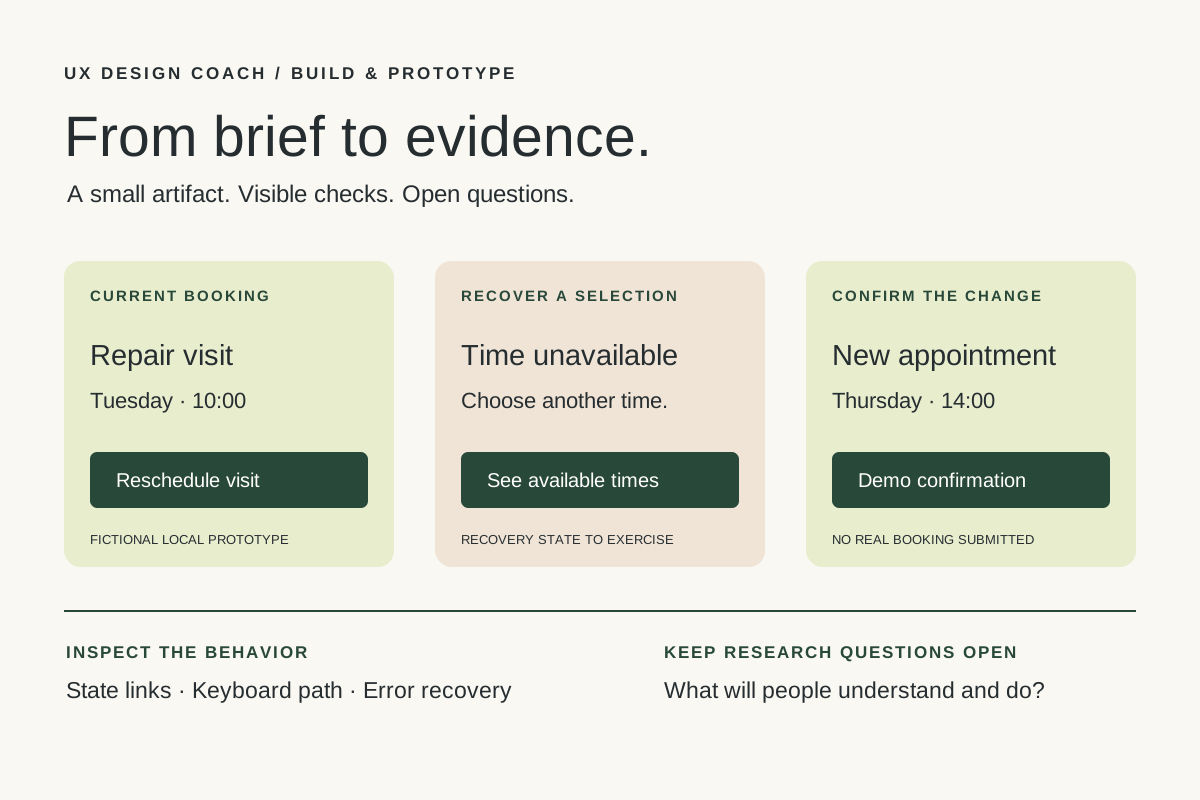
From design brief to reviewable prototype: inference and the agent harness
Use a bounded prototype exercise to understand inference, agent harnesses, tool checks, and the human research still needed. Includes a copyable design task card.
November 5, 2026 · 7 min read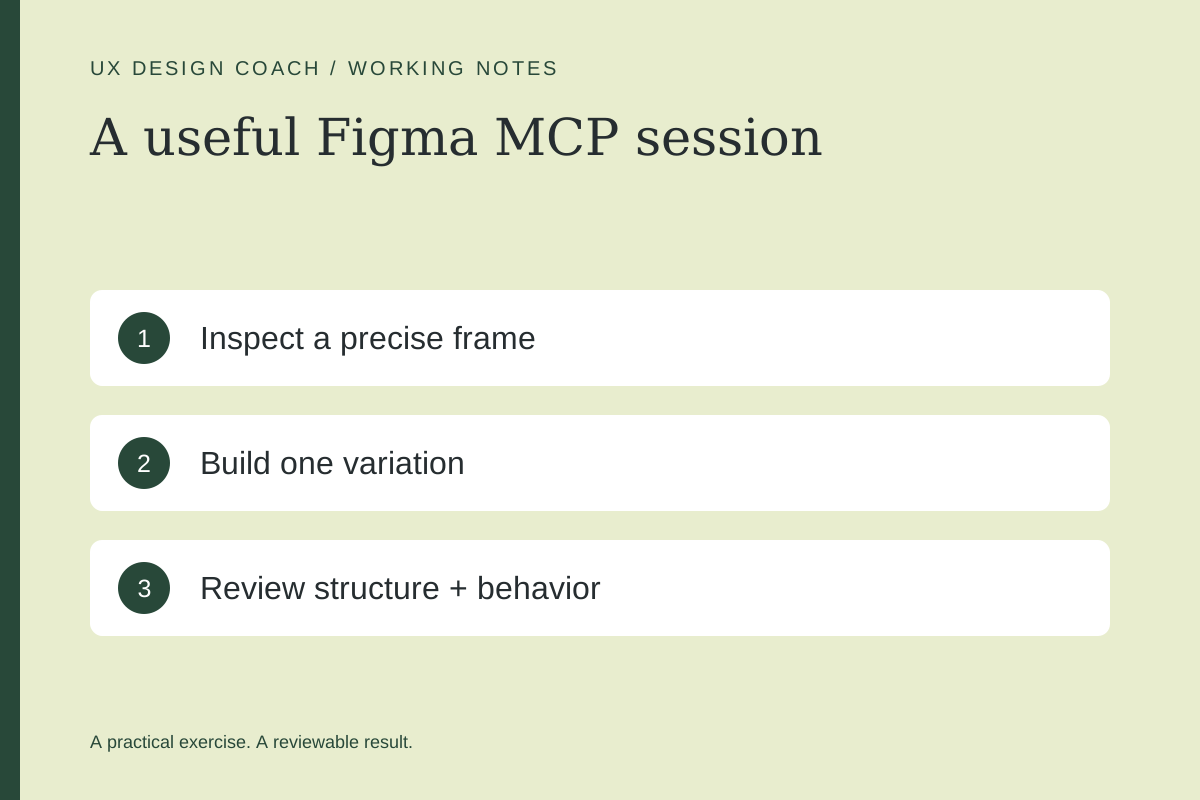 Tool workshop · Figma MCP
Figma MCP: turn your design system into a working AI partner
Connect Figma to an AI assistant, inspect a real frame, create a controlled variation, and check the handoff. Includes setup, prompts, and a troubleshooting checklist.
November 4, 2026 · 3 min read