Tool workshop · Figma MCP
Figma MCP: turn your design system into a working AI partner
Connect Figma to an AI assistant, inspect a real frame, create a controlled variation, and check the handoff. Includes setup, prompts, and a troubleshooting checklist.
In this guide
The useful starting point
Start with a supported client, connect the official Figma server, and inspect one frame before making a small change in a duplicate file.
Make your first session about one useful change
Choose a screen you understand well: a booking form, an account-settings panel, or a search result. The goal is an editable improvement that respects your components and can be reviewed against a specific task. A dramatic redesign is a poor first connection test because you cannot easily tell whether the assistant understood the file.
Figma’s official MCP supports reading design context and, through its remote server, writing native canvas content. Canvas writing is currently beta, requires edit access and a supported client, and has plan and seat restrictions. Check the linked access guidance before promising this workflow to a team.
1. Connect the official server
Use Figma’s plugin for your supported client where available; it includes workflow skills. For a manual Claude Code connection, Figma documents the command below. Authenticate through the client’s Figma sign-in flow, then verify that the server is connected. Other clients have their own setup instructions in the source link.
claude mcp add --transport http figma https://mcp.figma.com/mcpIn Figma, duplicate a small working file. Copy a link to the specific frame or layer. A selection link gives the assistant a precise target; a screenshot alone cannot supply the same component and variable context.
2. Ask for an inventory before a design
Inspect this selection: [frame link]. Do not edit yet. List the main components, layout rules, variables, and visible states. The user’s task is [task]. Identify what you can verify from the file and what requires a working implementation.
Compare the answer with the file. If the assistant misses the primary button or describes a component that is absent, fix the scope or connection before continuing. Save the inventory with the frame link and date.
3. Create one controlled variation
Fictional exercise: a booking form loses the selected date when an email address is invalid. Create a variation that preserves the date and makes the correction obvious. This is an interaction hypothesis, not a finding from participants.
On a new page named Booking exploration, create a variation of [frame link] using the existing form components and spacing variables. Show the invalid-email state while preserving the chosen date. Include a short annotation explaining the intended recovery. Do not modify the original page or publish library changes.
4. Inspect structure and behavior separately
- Structure: inspect component instances, text styles, spacing variables, resizing, and layer names.
- Content: make the error identify both the problem and the next action.
- Behavior: test keyboard focus, error announcement, and retained values in a working prototype. Canvas appearance does not establish these.
- Handoff: record the state transition, the data retained, and the acceptance criteria.
When the output goes wrong
Wrong screen? Re-send the selection link. Generic styling? Name the intended library and components. Slow or oversized response? Reduce the target to one section. Missing write tools? Check the remote connection, client support, and file permissions. A live-UI capture and a component-based canvas edit are different workflows; captured layers may need deliberate component cleanup.
Finish with: the original frame, the variation, three review notes, and one task to test with a person. Continue with the Figma Make prototype workshop.
Sources and further reading
- Figma: MCP server overview
- Figma: remote MCP setup
- Figma: write to canvas and current limitations
- W3C: evaluating web accessibility
Sources checked November 4, 2026. Review the linked publisher information for current details.
Put one idea to work
Take the next step with a practical worksheet, a clear research question, and a standard you can use to review the work.
Explore design worksheets →Explore more from UX Design CoachGet design practice in your inbox →Keep practicing
 Build & prototype · Working with agents
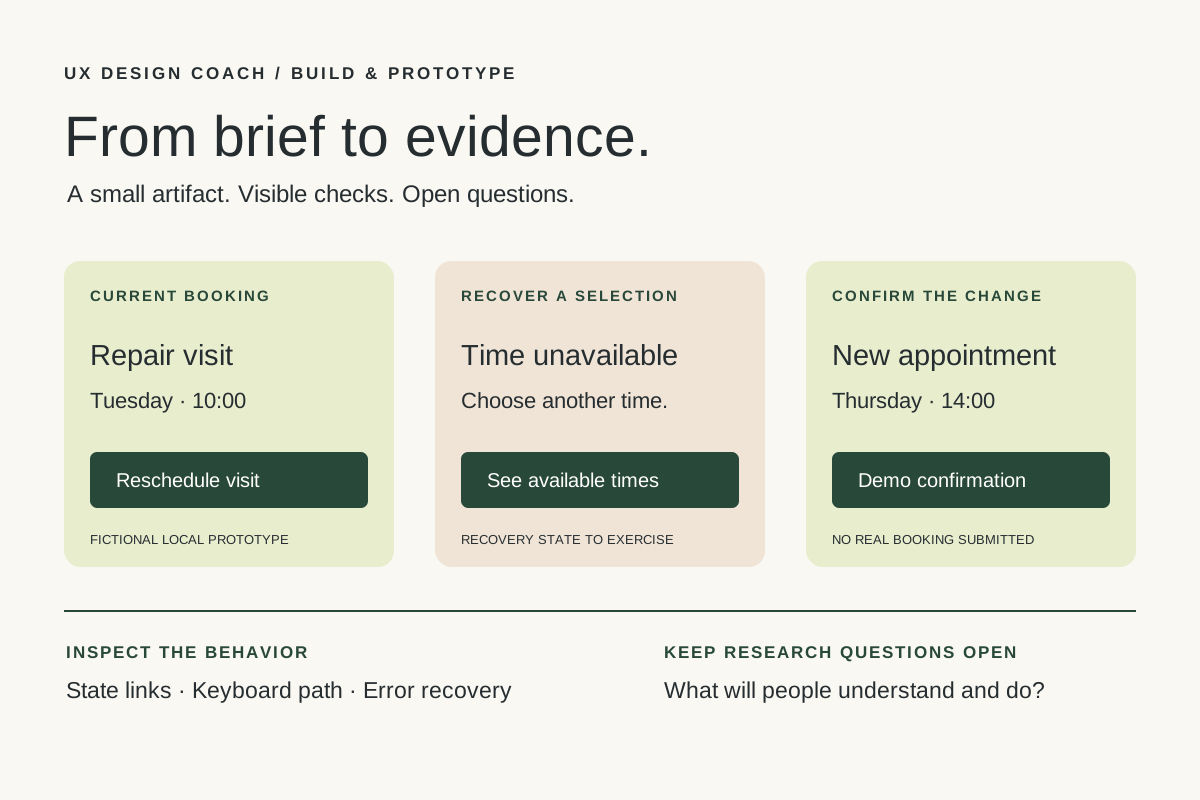
From design brief to reviewable prototype: inference and the agent harness
Use a bounded prototype exercise to understand inference, agent harnesses, tool checks, and the human research still needed. Includes a copyable design task card.
November 5, 2026 · 7 min read Tool workshop · Penpot
Penpot MCP: an open-source design workspace for your AI assistant
Use Penpot’s official MCP connection to inspect components, create a reusable screen, and keep your design system coherent.
November 4, 2026 · 3 min read